
Table of Contents
Remote access is only useful when the connection is protected as carefully as the system it opens. To understand how remote access control works, start with two checks: the system verifies a user’s identity, then grants access to the devices, networks or applications they are authorised to use. A secure connection, such as a VPN, helps protect data as it travels between locations.
It’s reasonable to expect a password to keep an account safe, but passwords can be stolen or reused. Multi-factor authentication (MFA) adds another verification step, such as a one-time passcode or security token, making it harder for someone to gain access with a password alone.
This guide explains how a remote connection is established, where MFA fits and how permissions limit what each user can access. It also covers practical security measures and the differences between common approaches, helping you assess which type of remote access solution suits your organisation’s systems and working needs.
Key Takeaways
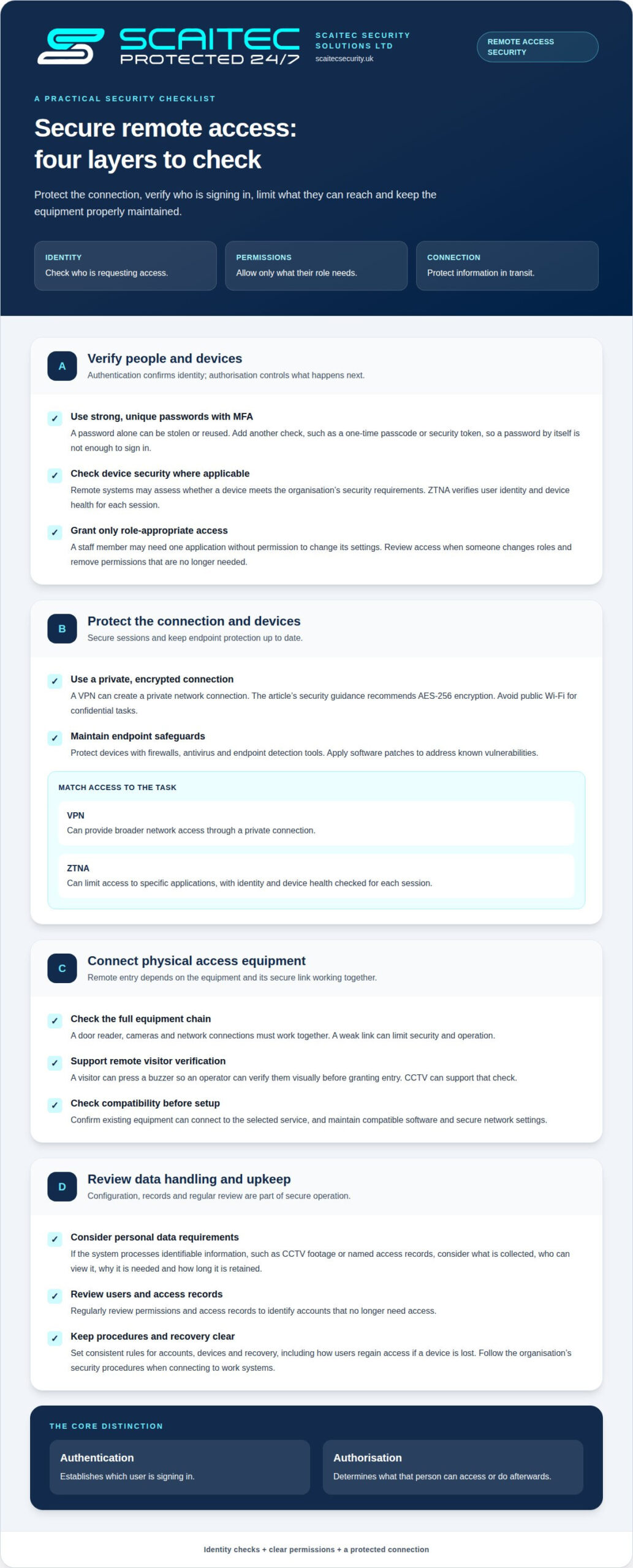
- Secure remote access combines identity checks, clear permissions and an encrypted connection, rather than relying on a password alone.
- MFA adds another identity check, helping reduce the risk of access through stolen credentials.
- Match the access method to the task: a VPN can provide broader network access, while ZTNA can limit access to specific applications.
- Consider how remote access affects day-to-day work, including device security, internet bandwidth and the ability to manage systems across sites.
- Assess compatibility with existing equipment and choose a solution with security controls suited to your organisation’s needs.
How can I secure my remote connection?
Secure remote access combines identity checks, defined permissions and a protected connection. For building entry, it also depends on correctly installed access equipment and a reliable link to remote monitoring.
Authentication and encrypted connections
Authentication checks who is requesting access, while encryption protects information travelling between connected systems. Use strong, unique passwords and multi-factor authentication for remote accounts, then assign each user only the permissions needed for their role. A VPN can create a private network connection; security guidance recommends AES-256 encryption. Keep endpoint devices protected with firewalls, antivirus and endpoint detection tools, and apply software patches to address known vulnerabilities.
Equipment and secure connectivity
Remote physical access control connects on-site equipment, such as a door reader, to a secure remote management system. This connection allows authorised operators to monitor and manage the system remotely. For example, a visitor can press a buzzer so an operator can verify them visually before granting entry. CCTV can support that verification. Equipment, cameras and network connections must work together; a weak link can limit the system’s security and operation.
Unlike a traditional key or card, remote access control lets an authorised operator manage entry from another location, without being physically present at the door. Keys and cards grant access through possession or presentation; remote control adds identity checks, permissions and a connection to the system. The right arrangement depends on the site’s entry points and how access needs to be managed.
In the UK, assess data-protection requirements when a system processes identifiable information, such as CCTV footage or named access records. Consider what information is collected, who can view it, why it is needed and how long it is retained. These details shape how personal data should be handled; remote connectivity alone does not determine the rules that apply.
For hybrid workplaces, role-based permissions can distinguish staff who need access to particular buildings, applications or systems. A private, encrypted connection helps protect remote sessions, while access policies should cover both office-based and off-site users. Avoid public Wi-Fi for confidential tasks, and follow your organisation’s security procedures when connecting to work systems.
Setup and upkeep matter. Check that existing equipment can connect to the selected service, and maintain compatible software and secure network settings. Regularly review user permissions and access records to identify accounts that no longer need access. Poor maintenance, incorrect configuration or an unsecured connection can expose systems to unauthorised use or attack.
For a home or business site, the access control systems page outlines options for managing entry through connected equipment.
Multi-factor authentication
Multi-factor authentication (MFA) adds an identity check beyond a password before remote access is granted. Remote access systems verify credentials and may also check a device’s security before allowing access to a network or application.
User credentials and passwords
User credentials are details, such as a username and password, that a system uses to verify an account. A strong, unique password makes each account harder to access through reused or guessed credentials. Password-only access remains vulnerable if someone steals the password, so it should not be the sole safeguard for a remote desktop or work application.
Authentication and authorisation are different checks. Authentication establishes which user is signing in; authorisation determines what that person can do afterwards. For example, a staff member may be allowed to open one work application but not change its settings. Restricting permissions this way helps limit the impact of a compromised account.
Two-factor authentication
Two-factor authentication is a type of MFA that asks for two different kinds of evidence before granting access. A user might enter a password and then provide a one-time passcode or approve a security token. The second factor helps protect an account if its password is stolen, because the password alone is no longer enough to complete sign-in.
For remote work, organisations can enable MFA on accounts used to access business applications and systems. The chosen method should fit how staff sign in, including whether they use a desktop computer or another device. A clear sign-in process helps staff complete security checks without unnecessary disruption to productivity.
Authenticating users and devices
Remote systems can authenticate a user through credentials, passcodes, security tokens or biometric scans. They can also assess whether the device meets the organisation’s security requirements. Zero Trust Network Access (ZTNA), for example, verifies user identity and device health for each session, then provides access to specific applications.
This approach makes access depend on the current sign-in, not simply on a user’s previous connection. If an employee needs one application, access can be limited to that application rather than extending across a whole network. Role-based permissions can further align access with work duties, helping prevent unnecessary privileges.
To implement MFA effectively, organisations need consistent rules for accounts, devices and recovery. Specify which remote services require an additional factor, how users regain access if a device is lost, and how permissions are reviewed when someone changes roles. Keep procedures straightforward. A reliable recovery route supports legitimate users without making password-only access the default alternative.
Strong passwords, MFA and device checks each address a different part of authentication. Used together, they make remote sign-in more controlled while preserving practical access to the tools staff need.
Remote access benefits and challenges
Remote access lets employees use work systems from locations away from the office. With secure remote access, an employee travelling between sites can reach a database or work application without being beside the server. The same flexibility can help hybrid teams work from home while using shared company resources.
Access can also support work across multiple premises. Cloud-based access control can let facilities teams manage systems for several sites from one location or off-site. For example, an authorised manager could oversee access settings for separate offices through a central system. This can make routine administration more consistent, while permissions still determine who can change settings.
Remote access can reduce the need to install applications separately on every device. Employees can use centrally hosted work tools, which may also reduce the need to pay for an application instance on each device. The practical benefit depends on how the organisation’s applications are hosted and licensed. Remote access itself doesn’t remove the need to manage accounts, credentials or suitable devices.
IT teams can support systems without travelling to each location. For example, a support team can update or test network assets remotely, while monitoring tools help maintenance staff track performance and troubleshoot faults. Remote desktop software can also provide control of another computer, and Virtual Network Computing can support screen sharing during IT troubleshooting. These tools can help teams diagnose a problem while the affected equipment remains on site.
There are trade-offs. Video calls, file transfers and access to cloud resources all use bandwidth, so a household connection may feel slower when several devices are active. A large file transfer alongside a video meeting can affect work quality. Scheduling large downloads outside peak periods can help reduce competition for network capacity.
Security and usability need to be considered together. Stolen credentials could expose systems if permissions are too broad, while an unreliable connection can interrupt legitimate work. Organisations should define which users need each application, protect remote sessions and review access as responsibilities change. Public Wi-Fi is a poor choice for confidential tasks; staff should use the connection methods required by their organisation.
Remote access can also support operational oversight beyond office computing. For example, remote monitoring can help teams observe system performance and respond to technical issues without being on site. Its value depends on reliable connectivity, suitable equipment and clear responsibility for reviewing alerts. Remote access is less useful when a site’s network cannot support the required connection or legacy equipment cannot integrate with the chosen system.
For a hybrid workplace, weigh the time saved on travel and local device setup against connectivity demands and ongoing access management. The best fit supports employees’ actual tasks without giving them unnecessary access or placing avoidable strain on the network.
Remote access connection and authentication steps
A remote connection links a device to a computer, network or application hosted elsewhere, usually over the internet. The method determines how traffic travels, what the user can reach and how the system verifies access.
VPNs and encrypted connections
A virtual private network (VPN) routes data through private servers and encrypts internet traffic between the user’s device and the network. This helps protect sensitive information in transit, particularly when employees connect away from the office. A VPN can provide broader network access, so permissions still matter. Connections can also use SSL/TLS or IPsec to help protect exchanged data from eavesdropping.
Direct network connections
A direct physical connection links a remote device with central resources on the same local area network (LAN). This can suit a controlled site where a dedicated line connects equipment to the organisation’s network. Unlike a VPN over the internet, it uses physical network infrastructure. Its reach depends on the line and connected network, so it may not suit employees working from varied locations.
For an internet-based session, the process begins when a user opens a VPN, remote desktop tool or other authorised service. The device contacts the organisation’s network or the specific computer hosting the required application. The connection method establishes a route; authentication then checks the sign-in before access is granted.
- Start the connection. The user opens the approved service from a device away from the hosted system, such as a laptop at home.
- Protect the traffic. A VPN creates an encrypted route, or a remote service uses a protected protocol such as SSL/TLS or IPsec.
- Verify the request. The system checks the user’s credentials and any additional authentication required by the organisation.
- Apply permissions. The system grants access to authorised resources, such as a work application, rather than automatically opening every network service.
These stages separate connection from permission. A successful connection does not mean every file or application becomes available. For example, a user may reach a company network through a VPN but still need separate authorisation for a finance system. That separation helps keep access aligned with each person’s duties.
Remote desktop software follows a related route, but lets a user control another computer remotely. Remote Desktop Protocol (RDP) can provide full graphical control of the remote system, so the user works with its desktop interface. The host computer runs the application; the remote device sends input and displays the session. This can be useful when software or files remain on a work computer.
Choose the connection method based on the resource and the user’s location. A VPN can suit access across a private network; application-specific access may be more appropriate when only one service is needed. A direct line depends on physical network links. In each case, authentication, encryption and permissions determine how the connection is protected and what it allows.
Choosing a remote access solution
Start with the task people need to complete, then match the connection to it. An employee opening one business application has different needs from an IT technician controlling a remote computer. The choice should balance access, security, compatibility and the effort required to manage the system over time.
A virtual private network (VPN) gives an authorised user broader access to a private network. Zero Trust Network Access (ZTNA) instead grants access to specific applications based on identity and device posture. For example, a team member who only needs a scheduling tool may not need access to the wider network. Limiting access to the required resource can help reduce unnecessary exposure to threats.
Consider how each option fits your current setup:
- Map the work. Identify whether staff need a shared application, files on a server or full remote desktop control.
- Set access boundaries. Decide which roles need each resource, and use granular permissions rather than broad access by default.
- Review device compatibility. Check whether existing equipment can connect to the proposed service. Systems more than five years old may need particular attention before integration.
- Assess security controls. Look for strong encryption, identity checks, device checks and access logs that support regular reviews.
Remote computer access software can provide a full desktop session, useful when an application must remain on a work computer. It also makes the host computer and its connection part of the access path. A cloud-based application may be a better fit if users need only that service. The decision depends on where the application runs and what staff must do.
For several premises, cloud-based access control can allow managers to oversee systems from one location or off-site. That can simplify administration across sites, but each site still needs compatible equipment and a reliable connection. Include network capacity in the assessment, particularly if remote sessions run alongside video calls or file transfers.
A robust solution also needs clear operating practices. Assign an owner for user permissions, remove access when work responsibilities change, and review activity records for unexpected use. Patch management and protected endpoint devices help address risks beyond the connection itself. These measures make the software easier to govern as the organisation’s applications and working patterns evolve.
Choose based on the access required, not the promise of reaching everything from anywhere. A VPN may suit teams needing network-wide resources; application-specific access may better fit narrower tasks. Existing equipment, device health, user roles and security requirements all shape a practical decision.
Scaitec Security Solutions: Access Control Systems
Scaitec Security Solutions Ltd designs, installs and maintains access control systems for homes and businesses in Sheffield, Rotherham and South Yorkshire. Turn to the team when you need to manage building entry, review existing access arrangements or plan the next step for your site. Depending on the premises, access control can work alongside CCTV, Intruder Alarms and Remote Monitoring as part of a coordinated security setup. Ongoing servicing can help keep equipment operating as intended and address changing site requirements.
For a home or workplace, the right arrangement depends on entry points, users and how access needs to be managed. Scaitec Security Solutions Ltd can help plan a suitable system and provide technical support through installation and maintenance in Sheffield, Rotherham and South Yorkshire.
Contact Scaitec Security Solutions Ltd to discuss access control for your property.
Plan the next step for your site
Understanding how remote access control works can help you decide what needs to change at your property. Start by identifying the entry points, users and operational requirements that matter most. A workplace with several access points may need a different arrangement from a home with one main entrance, so the design should reflect how the site is used.
Scaitec Security Solutions can help bring relevant electronic security systems together across Sheffield, Rotherham and South Yorkshire. Its offerings include Access Control Systems, CCTV Systems and Intruder Alarms, allowing you to consider entry management alongside other site security needs. Understanding how remote access control works can help you explain what you want a system to support, so the proposed approach can be shaped around your property and priorities.
A considered plan gives you a clear starting point for improving how access is managed. Take the next step at a pace that suits your property.
Frequently Asked Questions
What is access control?
Access control is the process of deciding who can enter a place or use a system, and what they can do there. In a building, a reader may accept an authorised card at a door. For a computer network, permissions can restrict a user to specific files or applications. The key distinction is between proving someone’s identity and deciding which areas or resources that identity can access.
What is remote access control and how does it work?
Remote access control lets an authorised person manage or use a system from a different location. For building entry, connected access equipment can send information to a remote operator, who may review a visitor and manage entry. For computer systems, an employee connects to a hosted computer, network or application. The arrangement depends on the resource involved: managing a door is different from signing into a work application.
What are the main types of remote access control systems?
Common computer access methods include VPNs, remote desktop tools and Zero Trust Network Access (ZTNA). A VPN can connect a user to a private network; remote desktop software lets them operate another computer. ZTNA can grant access to particular applications according to user identity and device condition. Cloud-based access control is another approach for managing building systems, including those at multiple sites, from a central location.
What equipment and software are needed for remote access control?
For remote computer access, users generally need a device, an internet connection and software that links them to the hosted computer, network or application. A remote desktop session also relies on a host computer. Building entry systems use access control equipment connected to a secure remote management channel. The components depend on whether the goal is to control a computer resource or manage physical entry to a property.
What are the security risks of remote access control and how can they be reduced?
Stolen credentials, unsecured connections and session hijacking can expose remote systems. Reduce these risks by requiring multi-factor authentication, using encrypted connections and limiting permissions to the resources each person needs. Keep devices protected and software patched. For example, if an employee changes roles, remove access they no longer require. Reviewing access records can also help identify unexpected activity and prompt a timely investigation.
What should you look for when choosing a remote access control system?
Start with the task: controlling a work computer, reaching one application or managing building entry may call for different systems. Check compatibility with existing equipment, especially if it is more than five years old. Assess encryption, permission controls, identity checks and visibility of access activity. Also consider the number of sites, connection reliability and how easily administrators can update permissions as staff responsibilities change.
Protect Your Business
Protect Your People
Book Your FREE Site Protection Survey

Since pioneering Scaitec Security Solutions in 2005, Paul Scaife, with his roots in the industry dating back to 1994, has distinguished the firm as a leading provider of bespoke fire and security solutions, servicing clients across Sheffield, Rotherham, and surrounding areas.
His leadership, underpinned by accreditation from the Security Systems and Alarms Inspection Board, ensures that Scaitec surpasses client expectations by blending advanced technology with a deep understanding of their unique needs.
Paul's ethos champions innovation and efficiency, driving Scaitec to deliver tailored, cutting-edge solutions that enhance safety and operational ease.
Discover more about Paul’s commitment to excellence on LinkedIn.